19 — 基于滚动的动画
介绍
只由 WebGL 构成的体验很棒,但有时候,你会希望这个体验是经典网站的一部分。
这个体验可以放在背景里,给页面增添一些美感,但那样的话,你会希望这个体验能和 HTML 内容正确地融为一体。
这节课,我们将学习如何把 Three.js 用作经典 HTML 页面的背景。我们会让相机跟着滚动平移。我们会发现一些让这个滚动更身临其境的技巧。我们会根据光标位置添加一个炫酷的视差动画。最后,当我们到达相应区块时,会触发一些动画。
设置
这节课是练习我们已经学过的许多技巧的好机会。环境没有预先搭好,大部分工作都要我们自己完成。
OrbitControls 已经被移除,因为我们希望相机跟着滚动移动,并且不让用户像之前的课程那样随意旋转。
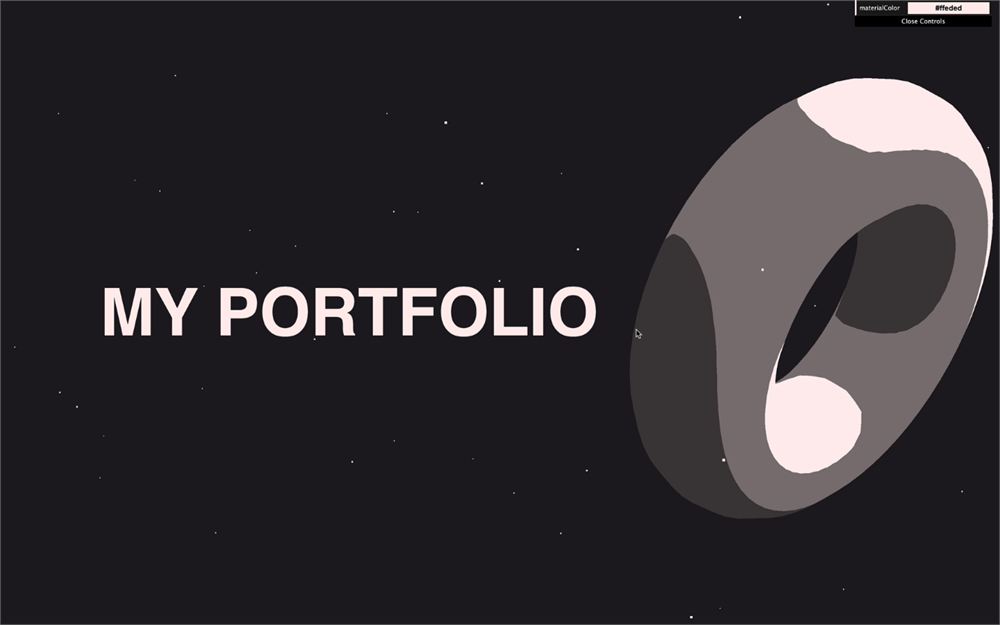
lil-gui 已经可用,而且已经创建了一个颜色,供以后使用:
/**
 * Debug
 */
const gui = new GUI()

const parameters = {
    materialColor: '#ffeded'
}

gui.addColor(parameters, 'materialColor')
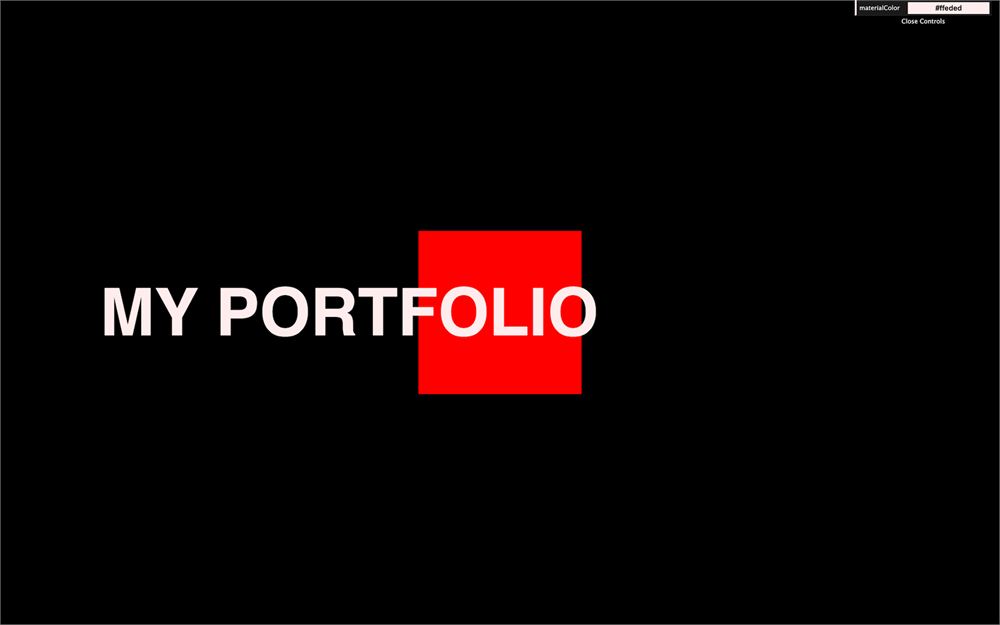
一些非常简单的 HTML 内容已经设置了。目前你只能看到一个标题,但正下方有两个区块。我们看不到它们,因为滚动被锁定了。
HTML 滚动
激活滚动
在课程更早的时候,我们用这段 CSS 停用了滚动:
html,
body
{
    overflow: hidden;
}
要重新激活它,在 /src/style.css 里移除 overflow 那一行。
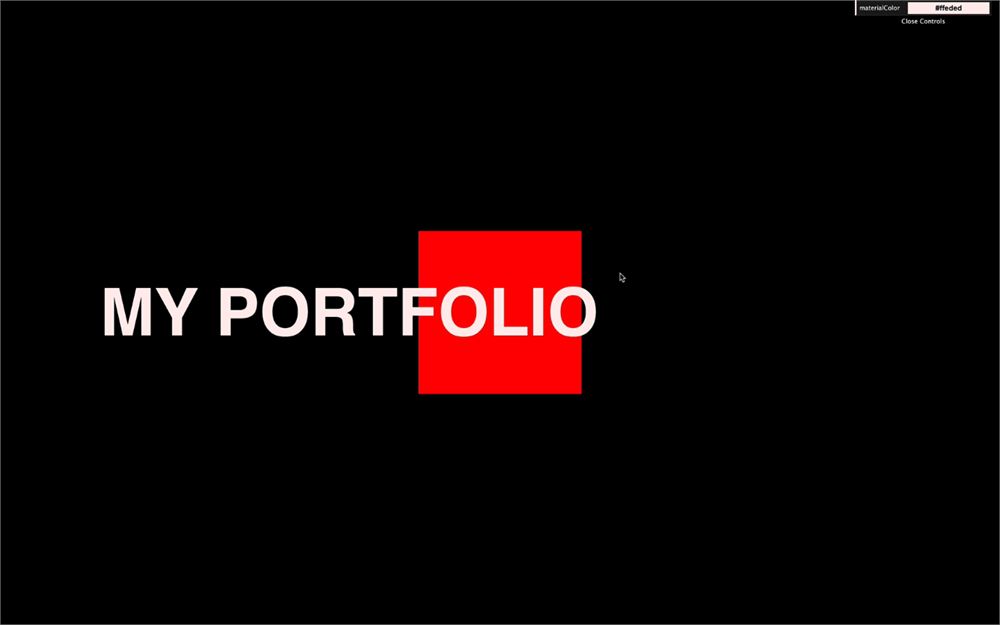
你应该能滚动并看到下面另外两个区块了。
修复弹性滚动
在某些环境下,你可能会注意到,如果滚动过头,页面超出边界时会出现一种弹性动画效果。
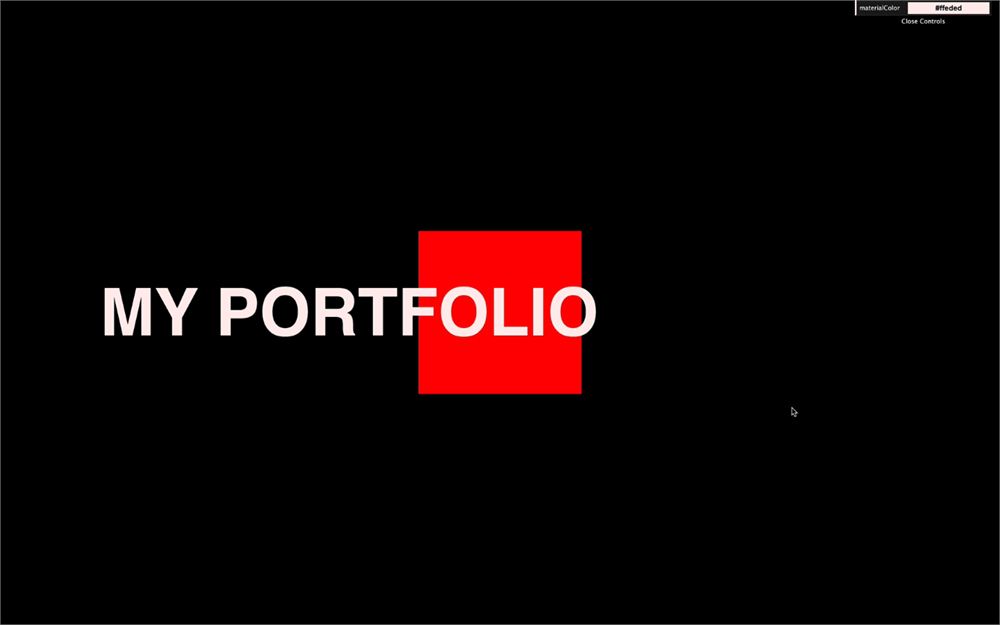
虽然这是个很酷的特性,但默认情况下,页面背面是白色的,和我们的体验不搭。
要修复这个,我们本可以把页面的 background-color 设为和 renderer 的 clearColor 一样的颜色。但我们改用另一种方式:把 clearColor 设为透明,只给页面设置 background-color。
要做到这一点,在 /src/script.js 里,你需要把 WebGLRenderer 上的 alpha 属性设为 true:
const renderer = new THREE.WebGLRenderer({
    canvas: canvas,
    alpha: true
})
默认情况下,clear 的 alpha 值是 0,这就是为什么我们不需要自己设置它。告诉 renderer 处理 alpha 就够了。但如果你想改变那个值,可以用 setClearAlpha 来做:
renderer.setClearAlpha(0)
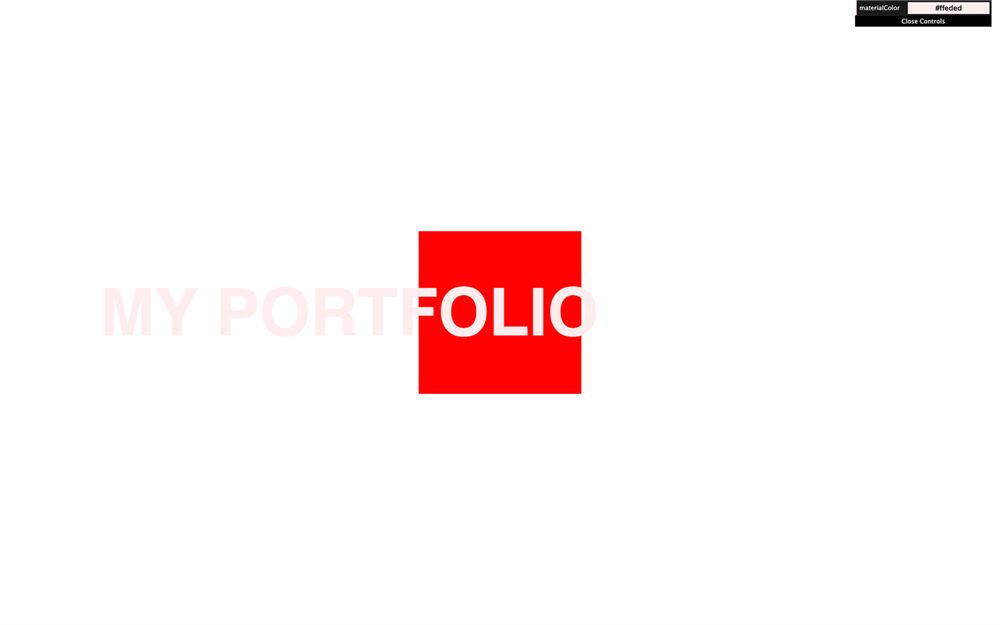
我们现在能看到白色(本页背面)了。
在 /src/style.css 里,给 CSS 中的 html 添加一个 background-color:
html
{
    background: #1e1a20;
}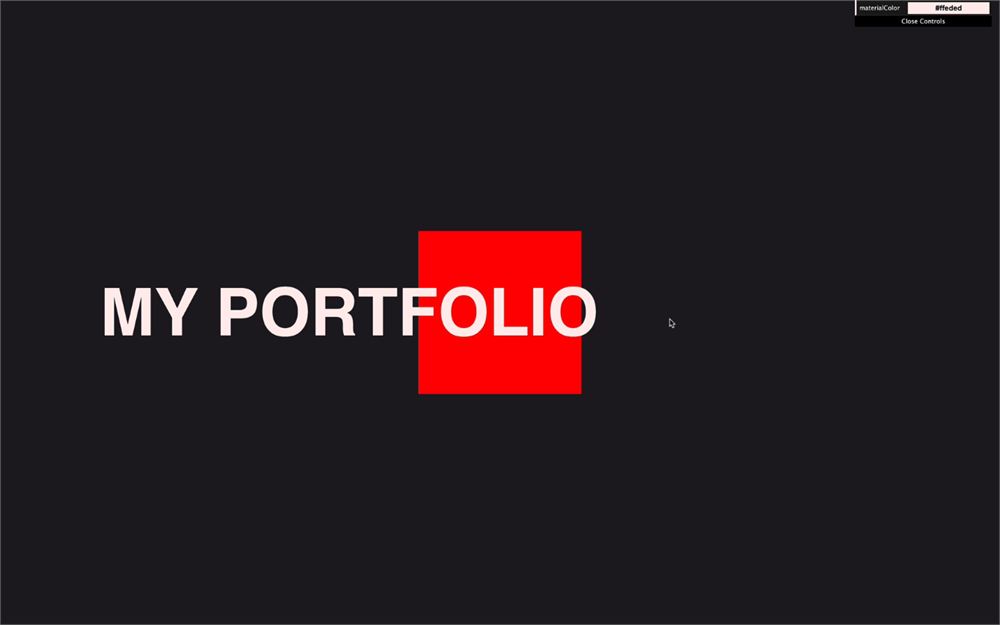
我们得到了一种漂亮的统一背景色,弹性滚动也不再是问题了。
物体
我们要为每个区块创建一个物体来代表它们。
为了保持简单,我们会使用 Three.js 基础几何体,但你可以创建任何你想要的东西。而且在这个课程后面,你会学到如何把自定义模型导入场景。
在 /src/script.js 里,移除立方体的代码。在它的位置,用 TorusGeometry、ConeGeometry 和 TorusKnotGeometry 创建三个 Mesh:
/**
 * Objects
 */
// Meshes
const mesh1 = new THREE.Mesh(
    new THREE.TorusGeometry(1, 0.4, 16, 60),
    new THREE.MeshBasicMaterial({ color: '#ff0000' })
)
const mesh2 = new THREE.Mesh(
    new THREE.ConeGeometry(1, 2, 32),
    new THREE.MeshBasicMaterial({ color: '#ff0000' })
)
const mesh3 = new THREE.Mesh(
    new THREE.TorusKnotGeometry(0.8, 0.35, 100, 16),
    new THREE.MeshBasicMaterial({ color: '#ff0000' })
)

scene.add(mesh1, mesh2, mesh3)
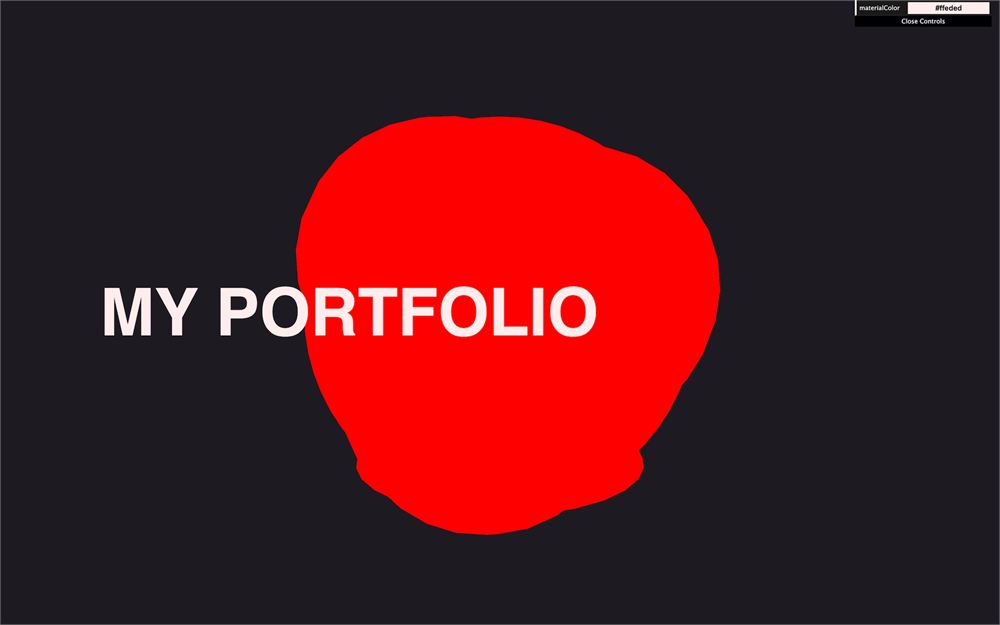
所有物体当然都叠在一起。我们稍后会修复这个。
同样,为了保持简单,我们的代码会有点冗余。但如果你有更多区块,不要犹豫,可以用数组或其他代码组织方案。
材质
基础材质
我们要在全部三个 Mesh 上使用 MeshToonMaterial。
和材质课程一样,我们只创建一个材质实例,并把它用在全部三个 Mesh 上。
创建 MeshToonMaterial 时,用 parameters.materialColor 作为 color 属性,并把它应用到全部 3 个 Mesh 上:
// Material
const material = new THREE.MeshToonMaterial({ color: parameters.materialColor })

// Meshes
const mesh1 = new THREE.Mesh(
    new THREE.TorusGeometry(1, 0.4, 16, 60),
    material
)
const mesh2 = new THREE.Mesh(
    new THREE.ConeGeometry(1, 2, 32),
    material
)
const mesh3 = new THREE.Mesh(
    new THREE.TorusKnotGeometry(0.8, 0.35, 100, 16),
    material
)

scene.add(mesh1, mesh2, mesh3)
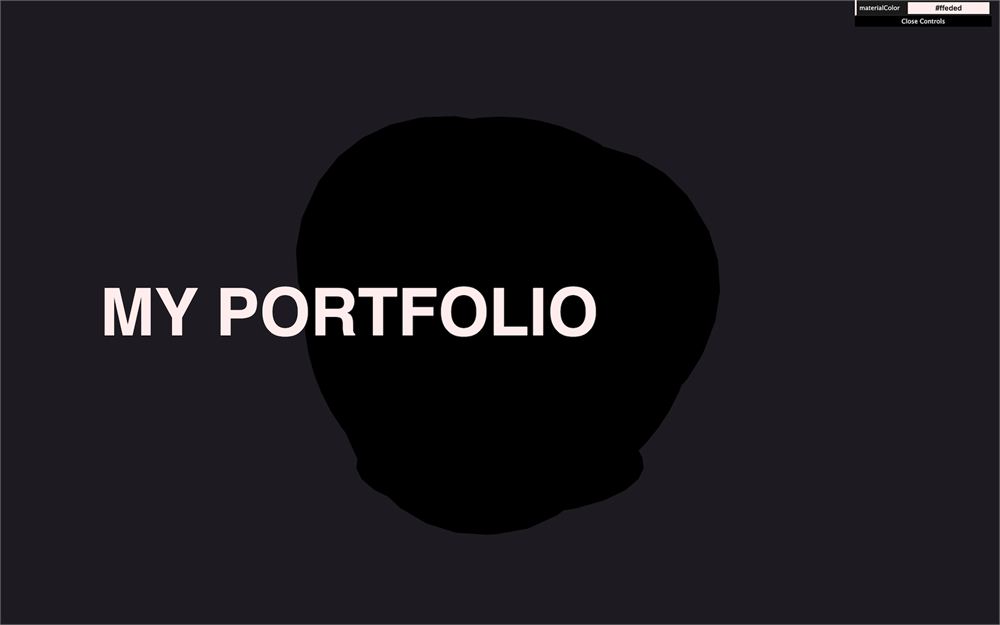
不幸的是,物体现在看起来是黑的。
原因是 MeshToonMaterial 是那种只有灯光存在时才显现的 Three.js 材质之一。
灯光
给场景添加一盏 DirectionalLight:
/**
 * Lights
 */
const directionalLight = new THREE.DirectionalLight('#ffffff', 3)
directionalLight.position.set(1, 1, 0)
scene.add(directionalLight)
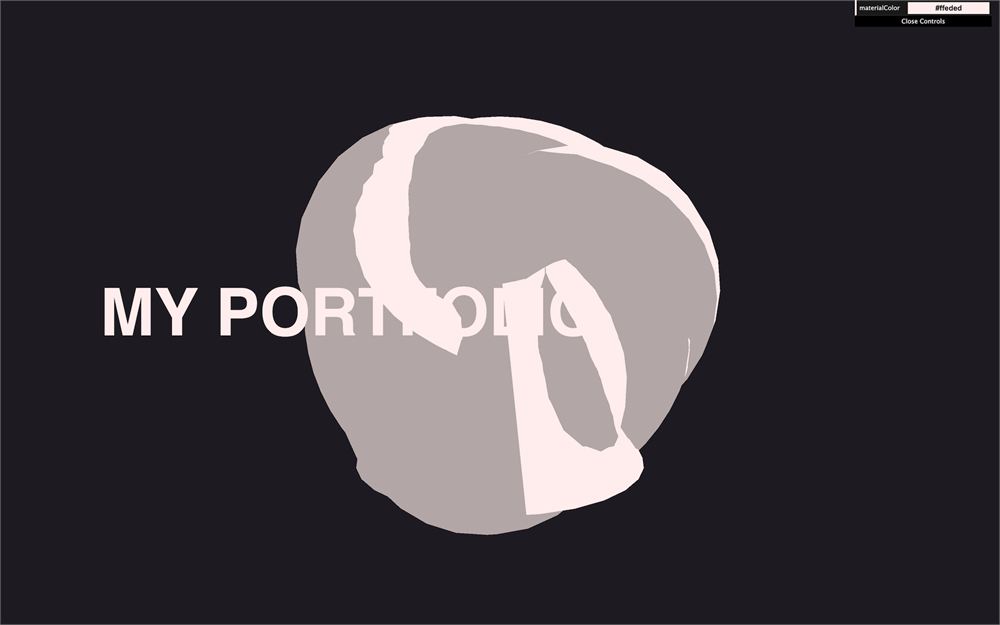
你现在应该能看到你的物体了。
我们用的是存储在 parameters 对象里的颜色,但用 Tweaker 修改这个值并不会改变材质本身。
要修复这个,我们可以监听已有调整项的 change 事件,并相应地更新材质:
gui
    .addColor(parameters, 'materialColor')
    .onChange(() =>
    {
        material.color.set(parameters.materialColor)
    })
渐变纹理
正如我们在材质课程看到的,默认情况下 MeshToonMaterial 在受光部分是一种颜色,在阴影部分是更暗的颜色。
我们可以通过提供渐变纹理来改进这一点。
/static/textures/gradients/ 文件夹里提供了两张渐变图片。
在实例化 material 之前实例化 TextureLoader。然后加载 textures/gradients/3.jpg 纹理:
// Texture
const textureLoader = new THREE.TextureLoader()
const gradientTexture = textureLoader.load('textures/gradients/3.jpg')
把它用在材质的 gradientMap 属性上:
// Material
const material = new THREE.MeshToonMaterial({
    color: parameters.materialColor,
    gradientMap: gradientTexture
})
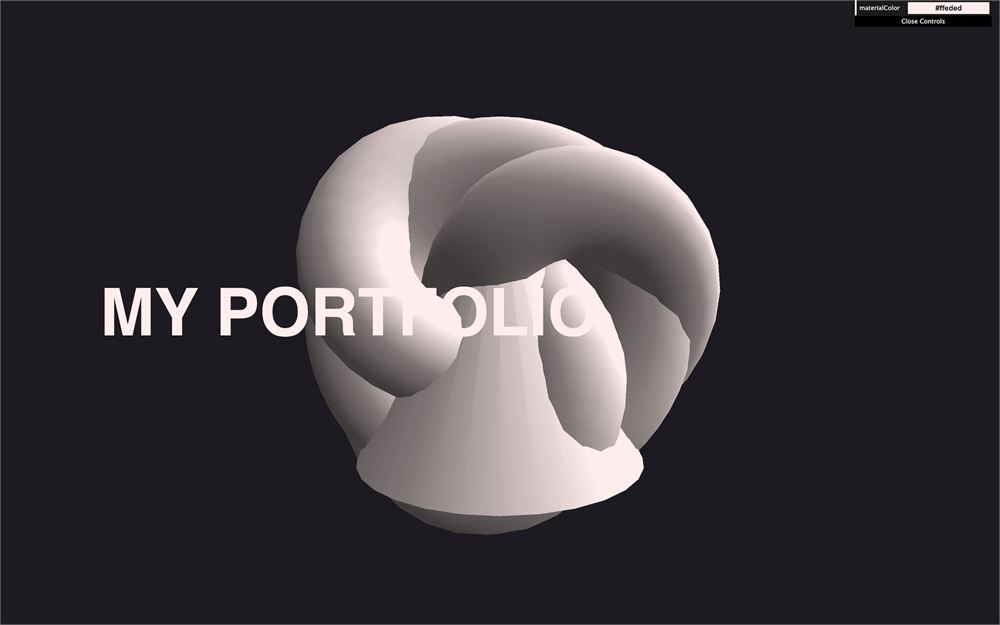
不是我们期待的卡通效果。
原因是这个纹理是一张非常小的图片,由 3 个从暗到亮的像素组成。默认情况下,WebGL 不是选取纹理上最近的像素,而是尝试插值像素。这通常对我们的体验观感有好处,但在这里,它制造出了渐变而不是卡通效果。
要修复这个,我们需要把纹理的 magFilter 设为 THREE.NearestFilter,这样就会使用最接近的像素,而不会和相邻像素插值:
const gradientTexture = textureLoader.load('textures/gradients/3.jpg')
gradientTexture.magFilter = THREE.NearestFilter
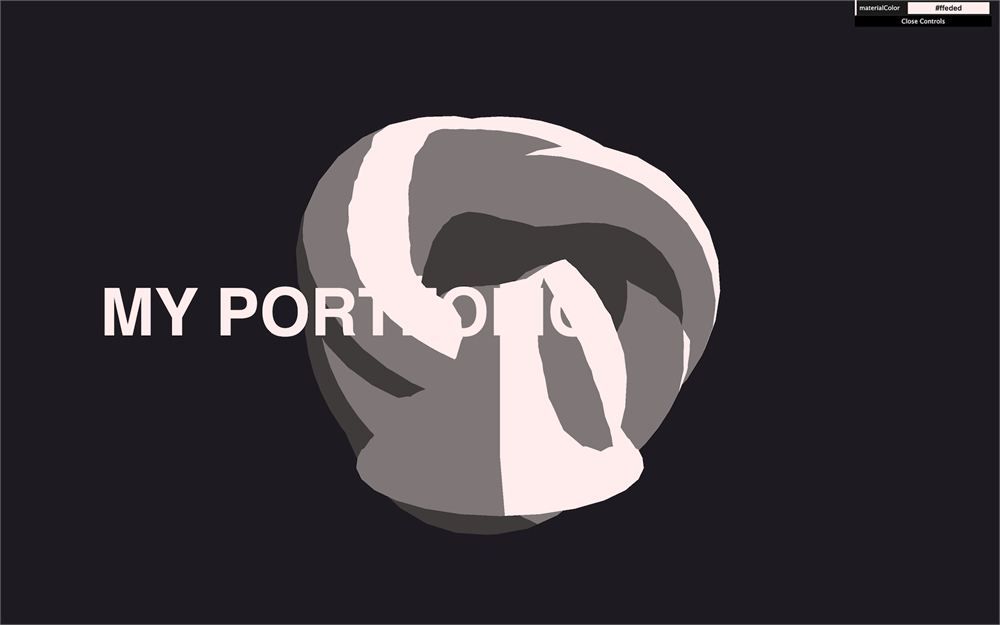
好多了,但我们仍然需要正确摆放这些 mesh。
位置
默认情况下,在 Three.js 里,视场角(field of view)是垂直的。这意味着如果你把一个物体放在渲染的上部、一个物体放在渲染的下部,然后调整窗口大小,你会注意到物体保持在顶部和底部。
为了演示这一点,临时添加这段代码:
mesh1.position.y = 2
mesh1.scale.set(0.5, 0.5, 0.5)

mesh2.visible = false

mesh3.position.y = - 2
mesh3.scale.set(0.5, 0.5, 0.5)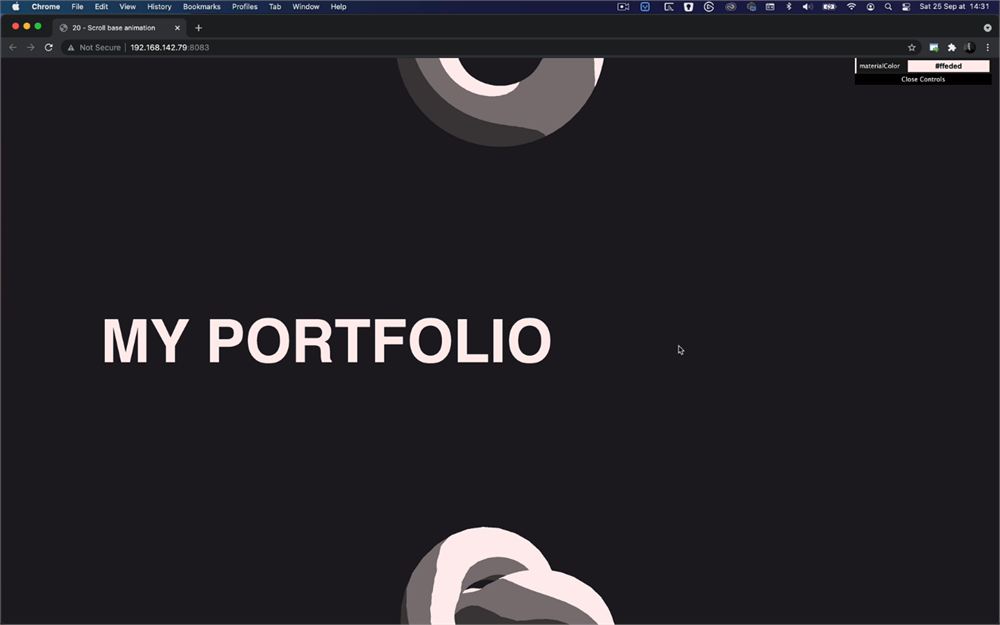
圆环保持在顶部,圆环结保持在底部。完成后移除上面的代码。
这很好,因为这意味着我们只需要确保每个物体在 y 轴上离其他物体足够远,这样我们就不会同时看到它们。
创建一个 objectsDistance 变量,选一个随意的值,比如 2:
const objectsDistance = 2用这个变量在 y 轴上摆放 mesh。这些值必须是负数,物体才会向下移动:
mesh1.position.y = - objectsDistance * 0
mesh2.position.y = - objectsDistance * 1
mesh3.position.y = - objectsDistance * 2
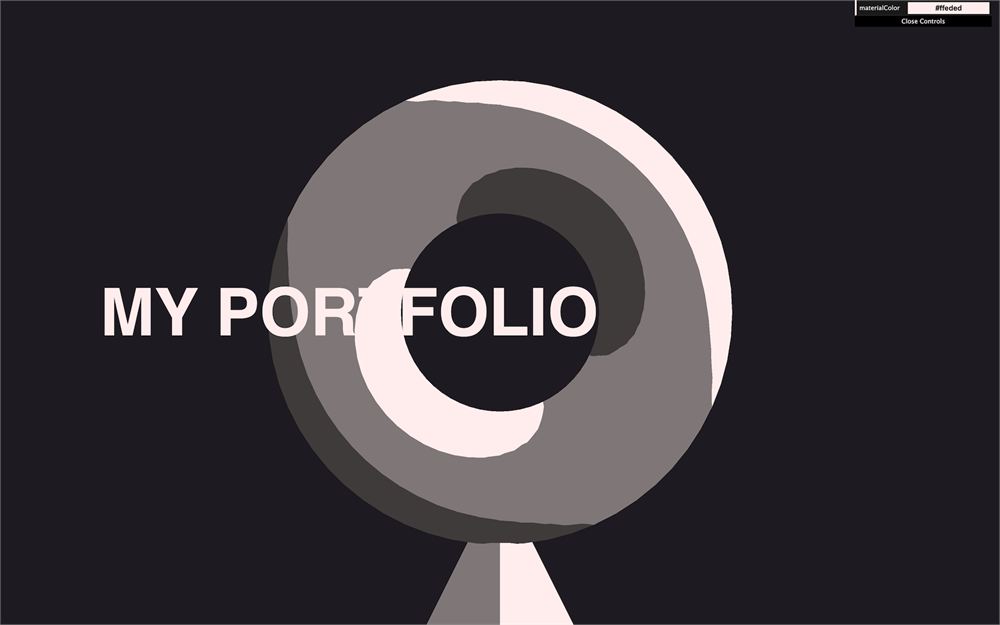
增大 objectsDistance,直到物体间距离足够远。一个好的数值应该是 4,但你也可以之后再改回来。
const objectsDistance = 4
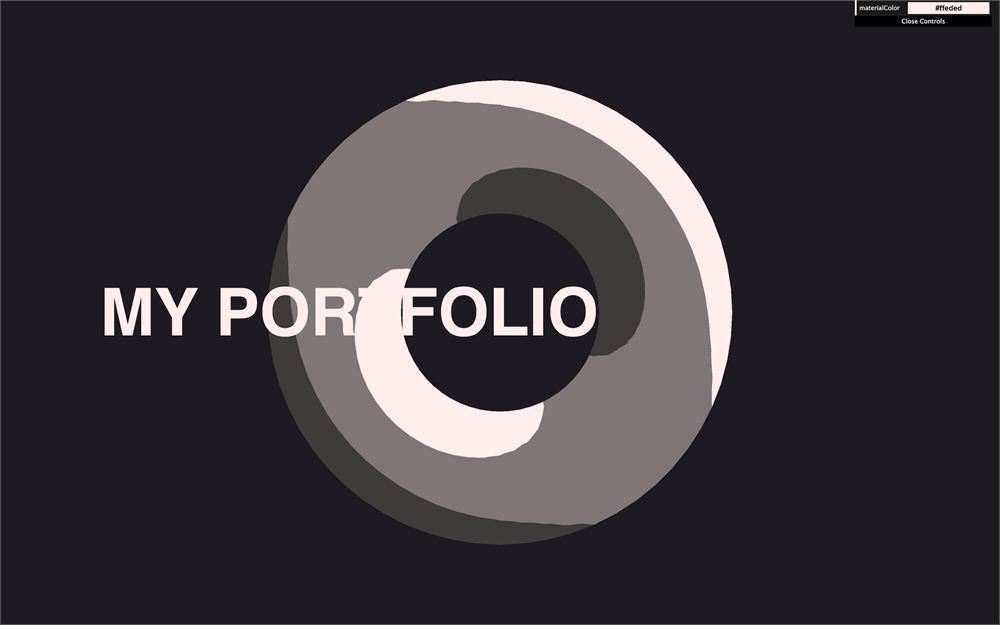
现在,我们只能看到第一个物体。另外两个在下面。等我们用滚动移动相机、它们再次出现时,再水平摆放它们。
objectsDistance 稍后会派上大用场,这就是为什么我们把这个值保存在变量里。
持续旋转
为了让体验更有生命力,我们要给物体加一个持续旋转。
首先,把物体添加到一个 sectionMeshes 数组:
const sectionMeshes = [ mesh1, mesh2, mesh3 ]然后,在 tick 函数里,遍历 sectionMeshes 数组,用已有的 elapsedTime 应用一个缓慢的旋转:
const tick = () =>
{
    const elapsedTime = clock.getElapsedTime()

    // Animate meshes
    for(const mesh of sectionMeshes)
    {
        mesh.rotation.x = elapsedTime * 0.1
        mesh.rotation.y = elapsedTime * 0.12
    }

    // ...
}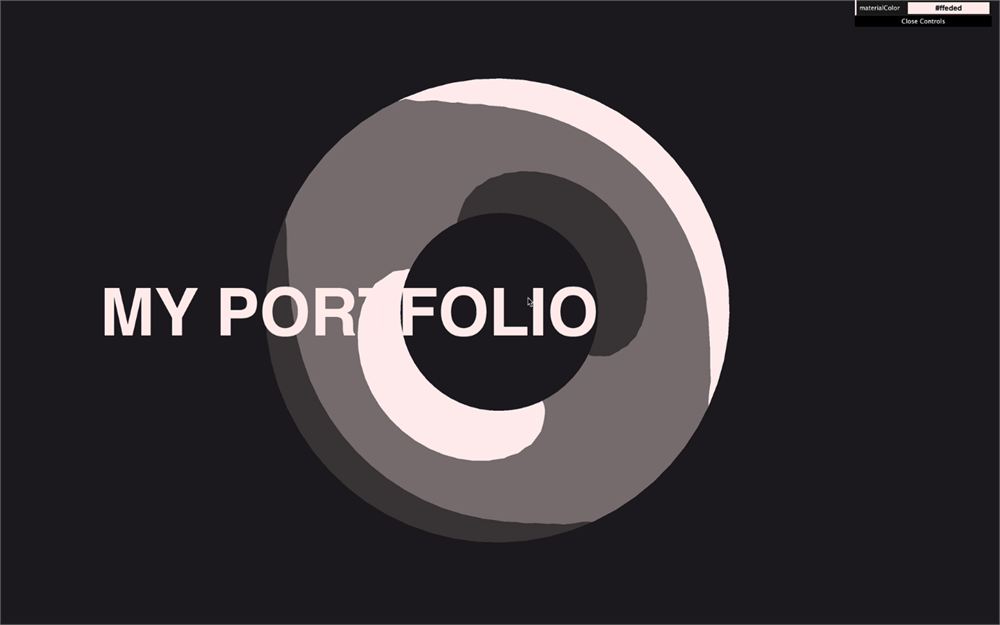
所有 mesh(虽然这里只能看到一个)都应该缓慢旋转。
相机
滚动
是时候让相机跟着滚动移动了。
首先,我们需要获取滚动值。这可以用 window.scrollY 属性实现。
创建一个 scrollY 变量,把 window.scrollY 赋给它:
/**
 * Scroll
 */
let scrollY = window.scrollY
但之后,我们需要在用户滚动时更新这个值。为此,监听 window 上的 'scroll' 事件:
window.addEventListener('scroll', () =>
{
    scrollY = window.scrollY

    console.log(scrollY)
})
你应该会在日志里看到滚动值。移除 console.log。
在 tick 函数里,用 scrollY 移动相机(在渲染之前做):
const tick = () =>
{
    // ...

    // Animate camera
    camera.position.y = scrollY

    // ...
}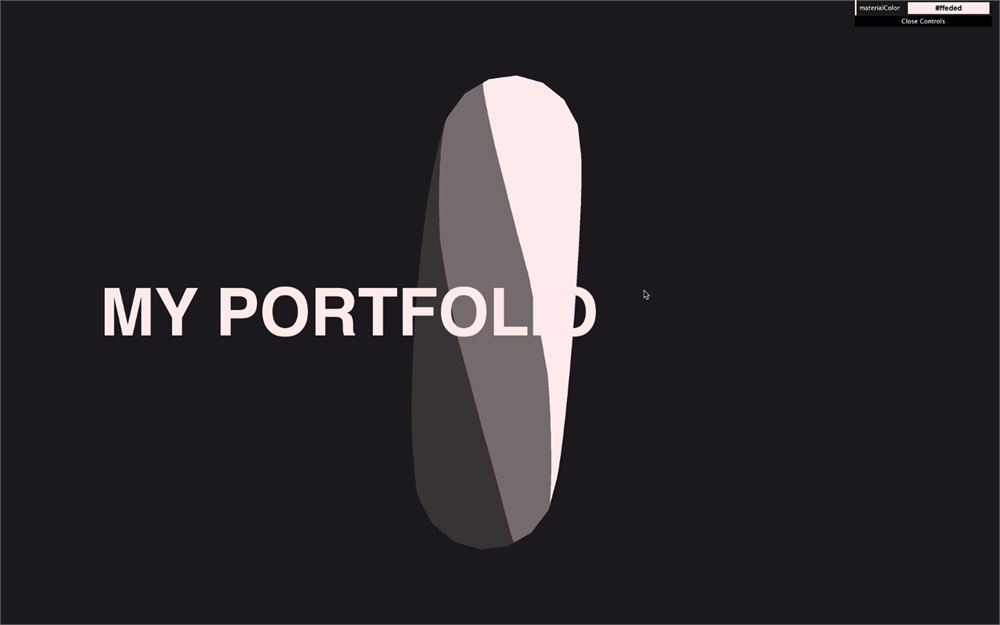
还不太对。相机太灵敏了,而且方向也反了。我们需要对这个值稍微处理一下。
scrollY 在向下滚动时是正数,但相机在 y 轴上应该向下移动。让我们反转这个值:
camera.position.y = - scrollY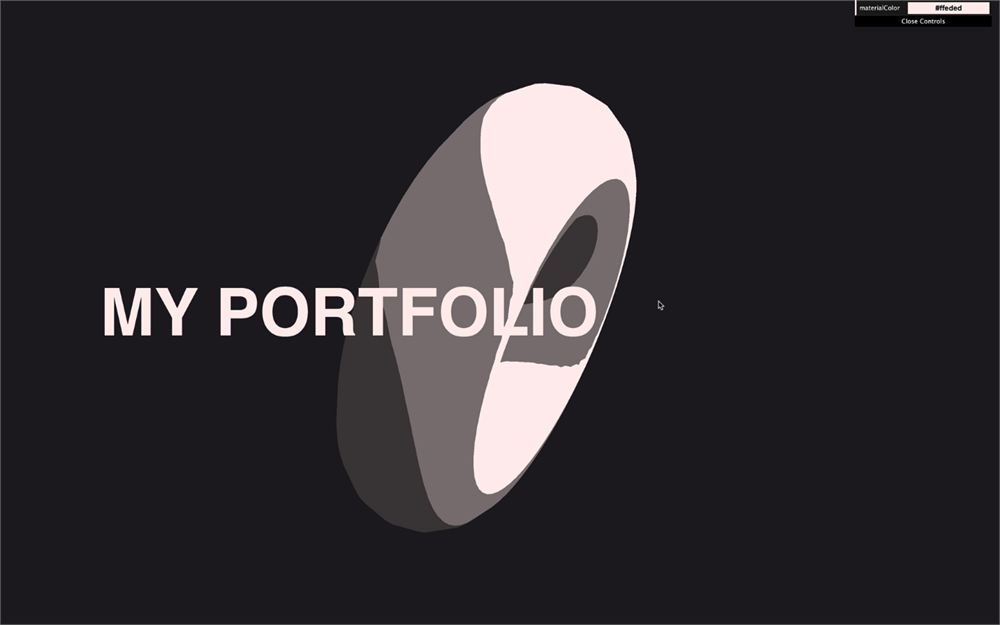
好一些,但还是太灵敏了。原因如下。
scrollY 包含已经滚动的像素数量。如果我们滚动 1000 像素(这并不多),相机就会在场景里向下移动 1000 个单位(这很多)。
每个区块的大小和视口完全相同。这意味着当我们滚动一个视口高度的距离时,相机应该到达下一个物体。
要做到这一点,我们需要把 scrollY 除以视口的高度,也就是 sizes.height:
camera.position.y = - scrollY / sizes.height相机现在每滚动一个区块就向下移动 1 个单位。但目前物体之间的间隔是 4 个单位,也就是 objectsDistance 变量:
我们需要把这个值乘以 objectsDistance:
camera.position.y = - scrollY / sizes.height * objectsDistance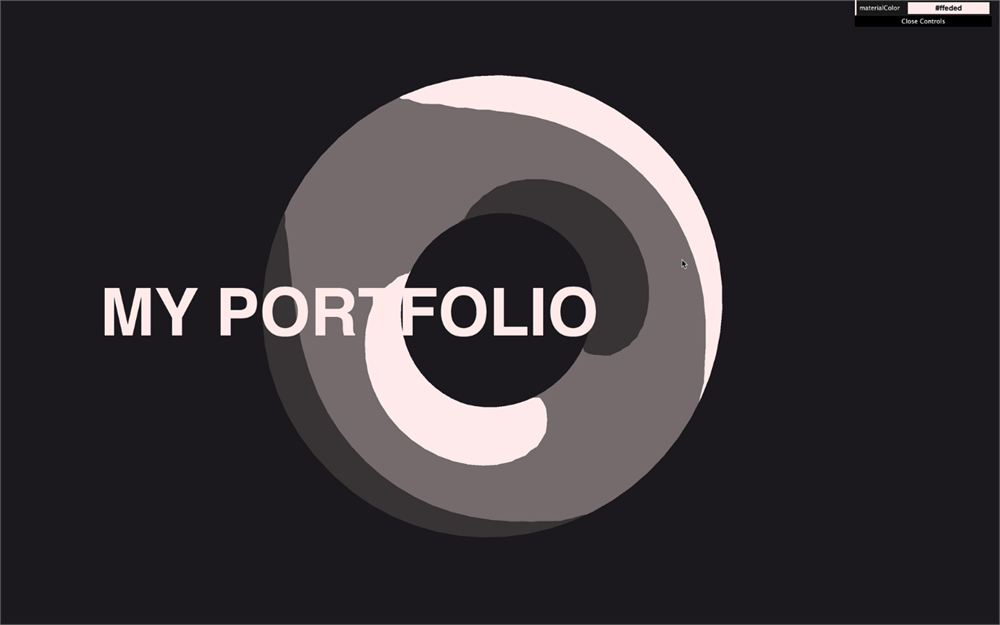
简而言之,如果用户向下滚动一个区块,相机就会移动到下一个物体。
水平摆放物体
现在是把物体左右摆放、以对齐标题的好时机:
mesh1.position.x = 2
mesh2.position.x = - 2
mesh3.position.x = 2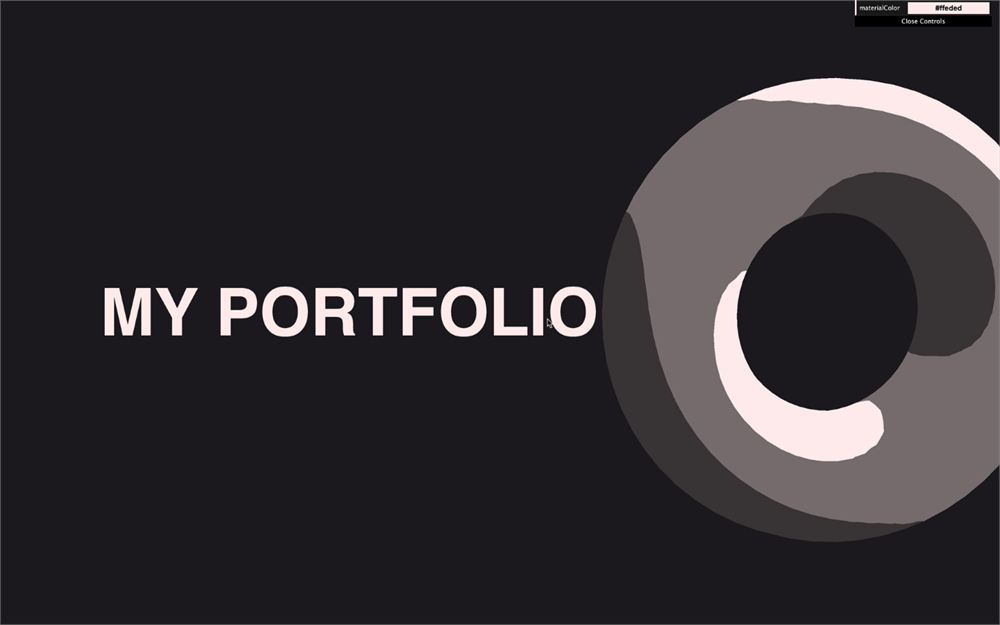
视差
我们把通过不同观察点看同一个物体称为视差(parallax)。我们的眼睛天然做到这一点,也正是这样我们感受到事物的深度。
为了让我们的体验更身临其境,我们要通过让相机根据鼠标移动水平、垂直移动来应用这个视差效果。它会创造出自然的交互,并帮助用户感受深度。
光标
首先,我们需要获取光标位置。
为此,创建一个带 x 和 y 属性的 cursor 对象:
/**
 * Cursor
 */
const cursor = {}
cursor.x = 0
cursor.y = 0
然后,监听 window 上的 mousemove 事件并更新这些值:
window.addEventListener('mousemove', (event) =>
{
    cursor.x = event.clientX
    cursor.y = event.clientY

    console.log(cursor)
})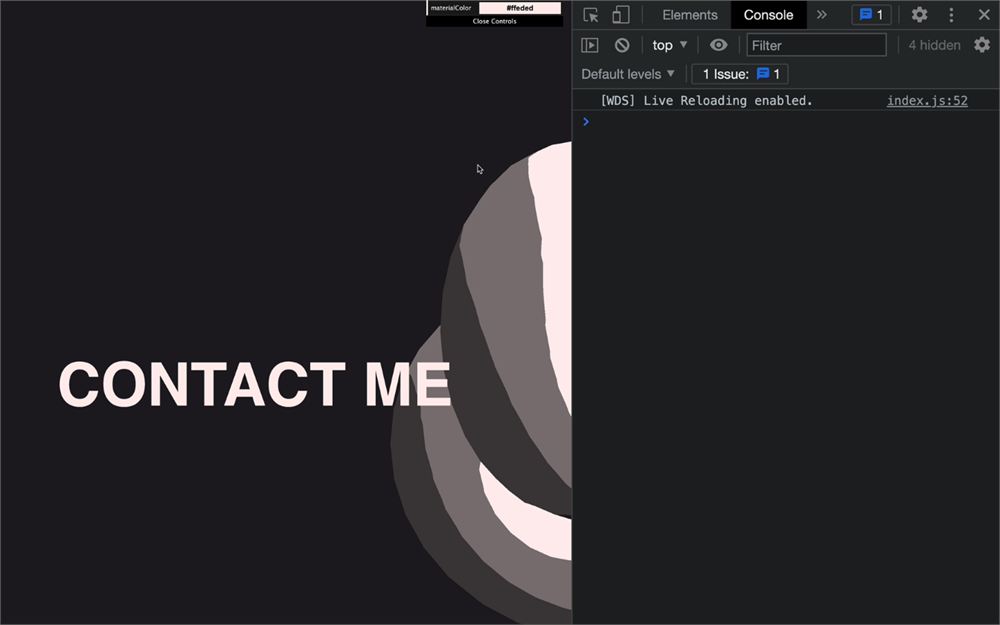
你应该会在控制台里得到光标的像素位置。
虽然我们可以直接用这些值,但把它们适配到上下文里总是更好。
首先,振幅取决于视口的大小,屏幕分辨率不同的用户会有不同的结果。我们可以把值归一化(从 0 到 1),方法是把它除以视口的大小:
window.addEventListener('mousemove', (event) =>
{
    cursor.x = event.clientX / sizes.width
    cursor.y = event.clientY / sizes.height

    console.log(cursor)
})
虽然这已经更好了,但我们还能做得更多。
我们知道相机左右能移动的幅度是一样的。这就是为什么,与其用一个从 0 到 1 的值,不如用一个从 -0.5 到 0.5 的值。
要做到这点,减去 0.5:
window.addEventListener('mousemove', (event) =>
{
    cursor.x = event.clientX / sizes.width - 0.5
    cursor.y = event.clientY / sizes.height - 0.5

    console.log(cursor)
})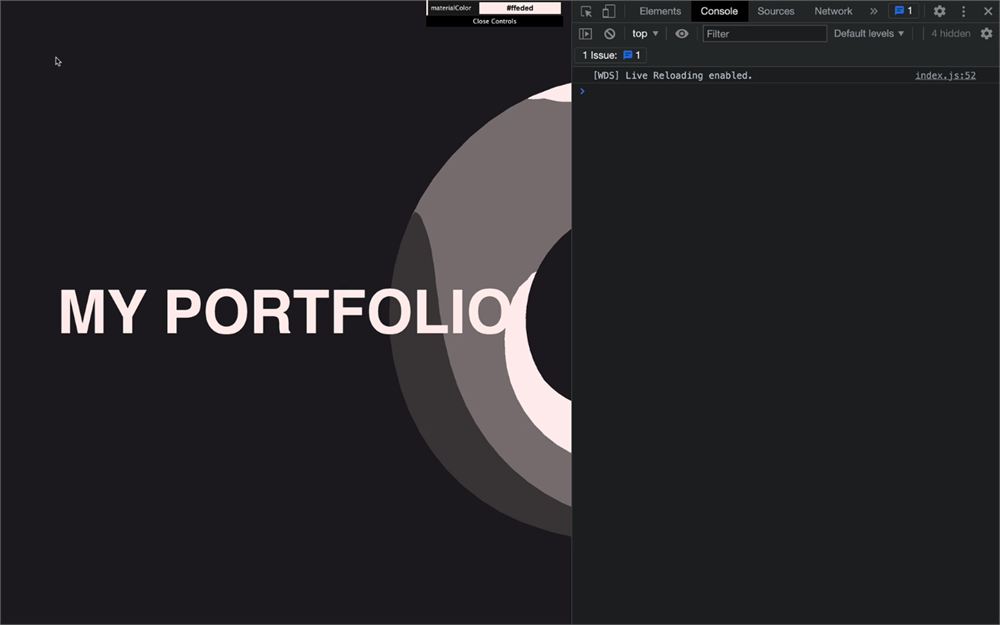
这是一个适配到上下文里的干净值。
移除 console.log。
我们现在可以在 tick 函数里使用光标值了。创建一个 parallaxX 和一个 parallaxY 变量,把 cursor.x 和 cursor.y 放进去:
const tick = () =>
{
    // ...

    // Animate camera
    camera.position.y = - scrollY / sizes.height * objectsDistance

    const parallaxX = cursor.x
    const parallaxY = cursor.y
    camera.position.x = parallaxX
    camera.position.y = parallaxY

    // ...
}不幸的是,我们有两个问题。x 和 y 轴在方向上似乎不同步。而且,相机滚动不再生效了。
让我们修复第一个问题。当我们把光标向左移动,相机似乎也向左移动。右边也一样。但当我们把光标向上移动,相机似乎向下移动,光标向下移动则相反。
要修复这种奇怪的感觉,反转 cursor.y:
const parallaxX = cursor.x
const parallaxY = - cursor.y
camera.position.x = parallaxX
camera.position.y = parallaxY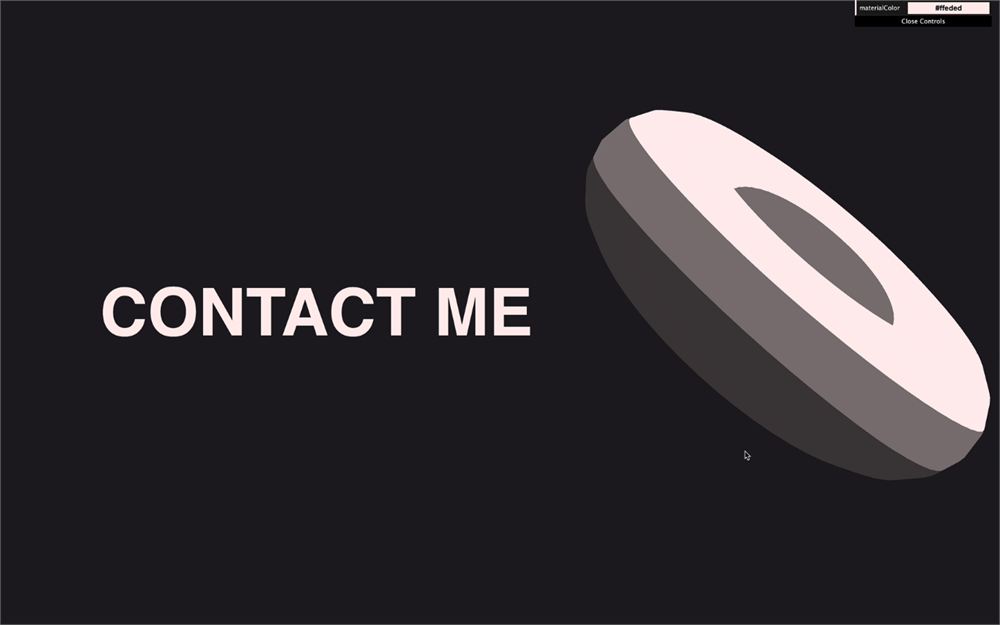
对于第二个问题,问题在于我们更新了两次 camera.position.y,第二次会覆盖第一次。
要修复这个,我们打算把相机放进一个 Group,把视差应用到 group 上,而不是相机本身。
在实例化 camera 之前,创建 Group,把它加到场景,并把 camera 加进 Group:
/**
 * Camera
 */
// Group
const cameraGroup = new THREE.Group()
scene.add(cameraGroup)

// Base camera
const camera = new THREE.PerspectiveCamera(35, sizes.width / sizes.height, 0.1, 100)
camera.position.z = 6
cameraGroup.add(camera)
这不应该改变结果,但现在,相机在 group 里了。
在 tick 函数里,与其把视差应用到相机上,不如应用到 cameraGroup 上:
const tick = () =>
{
    // ...

    // Animate camera
    camera.position.y = - scrollY / sizes.height * objectsDistance

    const parallaxX = cursor.x
    const parallaxY = - cursor.y

    cameraGroup.position.x = parallaxX
    cameraGroup.position.y = parallaxY

    // ...
}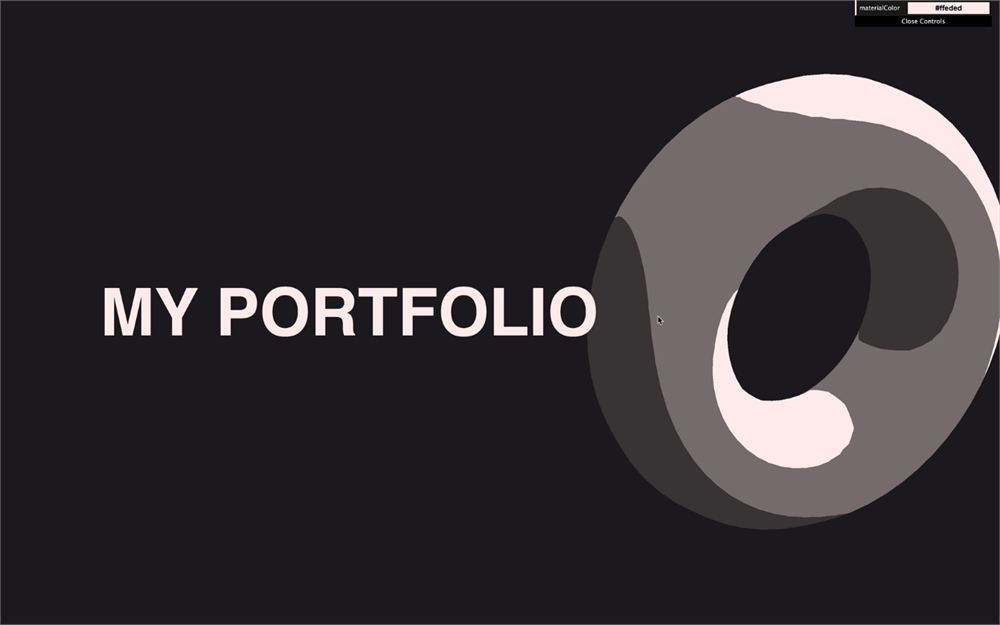
滚动动画和视差动画现在很好地混合在一起了。但我们还能做得更好。
缓动
视差动画是个好的开始,但感觉有点太机械了。在现实生活中有很多原因让这种线性动画不可能实现:相机有重量、空气和表面有摩擦力、肌肉不可能做出这样线性的移动等等。这就是为什么现在这个移动感觉有点不对劲。我们要添加一些"easing"(也叫"smoothing"或"lerping"),并使用一个著名的公式。
这个公式背后的思路是,在每一帧上,我们不把相机直接移到目标,而是移到(比如说)离目的地近十分之一的地方。然后在下一帧,再近十分之一。然后在下一帧,再近十分之一。
在每一帧上,相机都会离目的地近一点。但越接近,移动得就越慢,因为它总是移动当前位置到目标位置之间的十分之一。
首先,我们需要把 = 改成 +=,因为我们要加到当前位置上:
cameraGroup.position.x += parallaxX
    cameraGroup.position.y += parallaxY
然后,我们需要计算从当前位置到目的地的距离:
cameraGroup.position.x += (parallaxX - cameraGroup.position.x)
    cameraGroup.position.y += (parallaxY - cameraGroup.position.y)
最后,我们只要那段距离的十分之一:
cameraGroup.position.x += (parallaxX - cameraGroup.position.x) * 0.1
    cameraGroup.position.y += (parallaxY - cameraGroup.position.y) * 0.1
动画感觉平滑多了,但还有一个你们中一些人可能已经注意到的问题。
如果你在高刷新率屏幕上测试,tick 函数会被更频繁地调用,相机就会更快地移向目标。虽然这不是大问题,但不精确,而且最好尽量让不同设备的体验一致。
要修复这个,我们需要使用每帧之间经过的时间。
在实例化 Clock 之后,立即创建一个 previousTime 变量:
const clock = new THREE.Clock()
let previousTime = 0
在 tick 函数开头、设置 elapsedTime 之后,用 elapsedTime 减去 previousTime 计算 deltaTime:
const tick = () =>
{
    const elapsedTime = clock.getElapsedTime()
    const deltaTime = elapsedTime - previousTime

    // ...
}
然后,更新 previousTime,供下一帧使用:
const tick = () =>
{
    const elapsedTime = clock.getElapsedTime()
    const deltaTime = elapsedTime - previousTime
    previousTime = elapsedTime

    console.log(deltaTime)

    // ...
}
你现在有了当前帧和上一帧之间经过的时间,单位是秒。对于高刷新率屏幕,这个值会更小,因为需要的时间更少。
我们现在可以在视差上使用 deltaTime 了,但因为 deltaTime 的单位是秒,这个值会非常小(大多数常见的 60fps 屏幕大约 0.016)。因此,效果会非常慢。
要修复这个,我们可以把 0.1 改成像 5 这样的值:
cameraGroup.position.x += (parallaxX - cameraGroup.position.x) * 5 * deltaTime
    cameraGroup.position.y += (parallaxY - cameraGroup.position.y) * 5 * deltaTime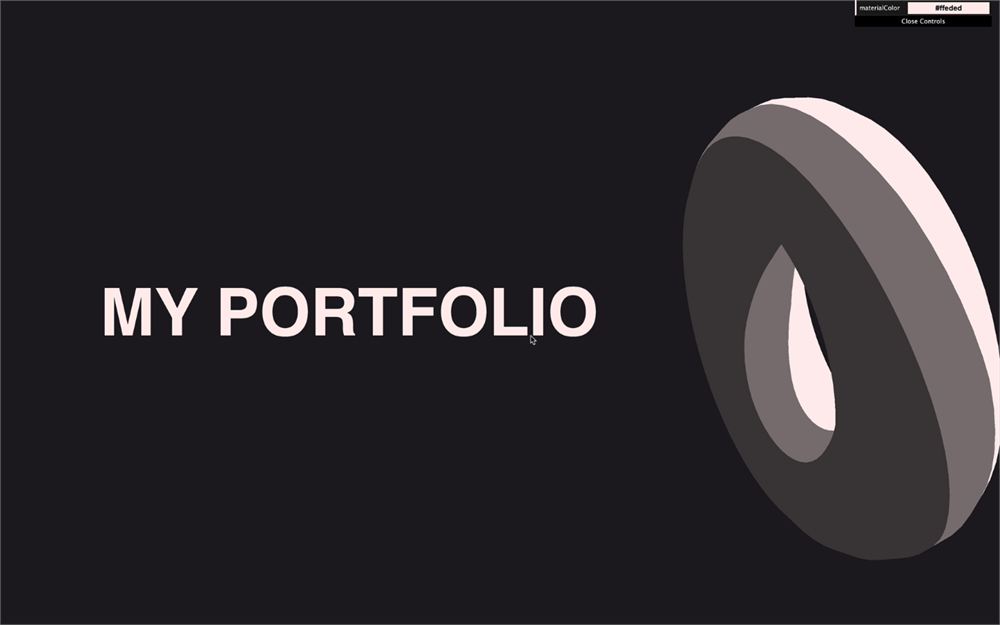
我们现在有了一个不错的缓动,在不同屏幕刷新率下感觉都会一样。
最后,既然动画已经设置好了,我们可以降低效果的振幅:
const parallaxX = cursor.x * 0.5
    const parallaxY = - cursor.y * 0.5
粒子
让体验更身临其境、帮助用户感受深度的一个好方法,是添加粒子。
我们要创建非常简单的方形粒子,并把它们散布在场景周围。
因为我们需要自己摆放粒子,我们要像粒子和星系生成器课程那样创建自定义 BufferGeometry。
创建一个 particlesCount 变量,并用 Float32Array 创建一个 positions 变量:
/**
 * Particles
 */
// Geometry
const particlesCount = 200
const positions = new Float32Array(particlesCount * 3)
创建一个循环,往 positions 数组里添加随机坐标:
for(let i = 0; i < particlesCount; i++)
{
    positions[i * 3 + 0] = Math.random()
    positions[i * 3 + 1] = Math.random()
    positions[i * 3 + 2] = Math.random()
}
我们稍后会改这些位置,但先保持简单,确保我们的几何体能工作。
实例化 BufferGeometry 并设置 position attribute:
const particlesGeometry = new THREE.BufferGeometry()
particlesGeometry.setAttribute('position', new THREE.BufferAttribute(positions, 3))
用 PointsMaterial 创建材质:
// Material
const particlesMaterial = new THREE.PointsMaterial({
    color: parameters.materialColor,
    sizeAttenuation: true,
    size: 0.03
})
用 Points 创建粒子:
// Points
const particles = new THREE.Points(particlesGeometry, particlesMaterial)
scene.add(particles)
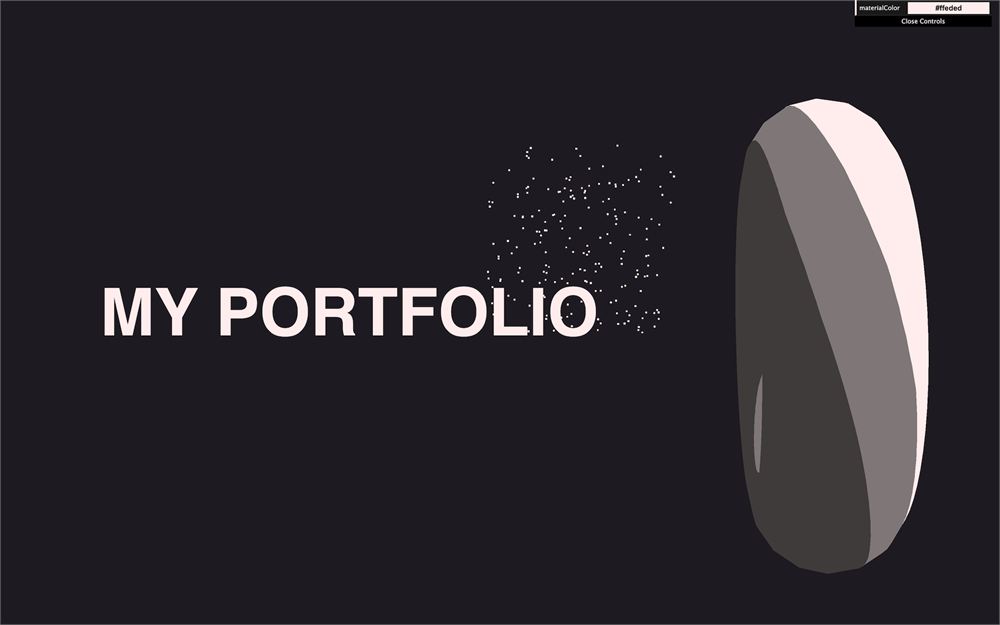
你应该会得到一片散布在立方体里的粒子。
这部分我们过得很快,因为我们在更早的课程已经学过怎么做粒子了。如果你遇到困难,这是正常的。这仍然有点难,而且容易出错。
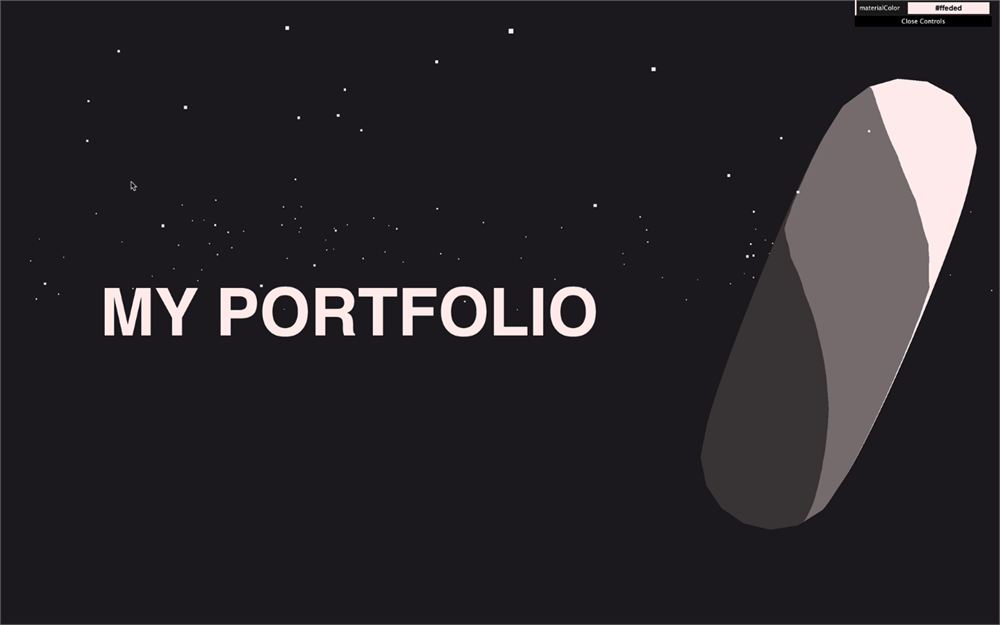
我们现在可以把粒子摆到三个轴上了。
对于 x(水平)和 z(深度),我们可以使用正负各半的随机值:
for(let i = 0; i < particlesCount; i++)
{
    positions[i * 3 + 0] = (Math.random() - 0.5) * 10
    positions[i * 3 + 1] = Math.random()
    positions[i * 3 + 2] = (Math.random() - 0.5) * 10
}
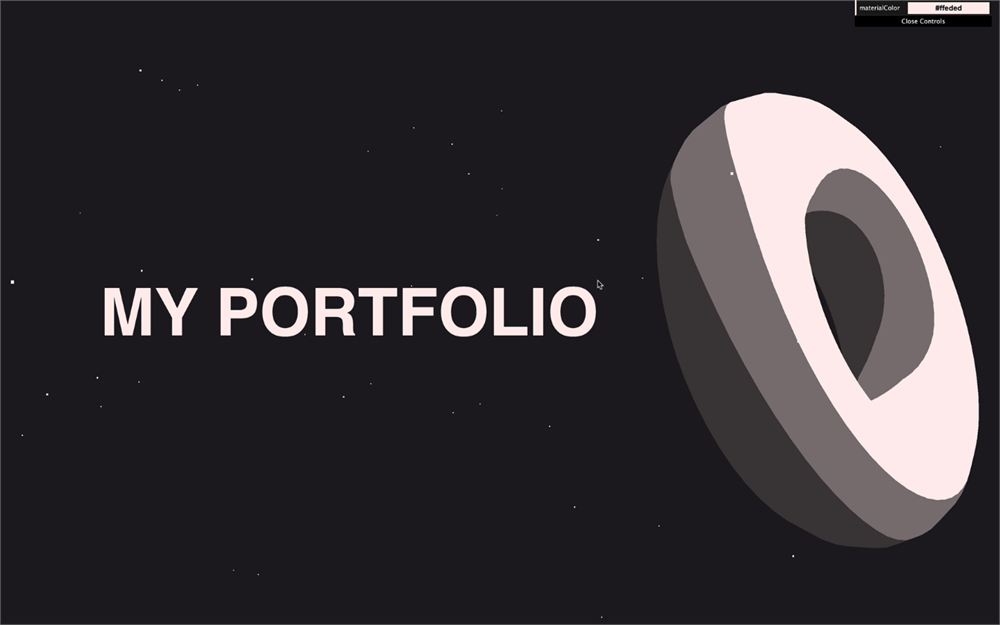
对于 y(垂直)就稍微棘手一些。我们需要让粒子从足够高的地方开始,然后向下铺开足够远,这样我们就能滚动到底。
要做到这一点,我们可以用 objectsDistance 变量,乘以物体数量,也就是 sectionMeshes 数组的 length:
for(let i = 0; i < particlesCount; i++)
{
    positions[i * 3 + 0] = (Math.random() - 0.5) * 10
    positions[i * 3 + 1] = objectsDistance * 0.5 - Math.random() * objectsDistance * sectionMeshes.length
    positions[i * 3 + 2] = (Math.random() - 0.5) * 10
}
和物体的材质一样,我们可以在调整项的 change 事件里更新粒子的颜色:
gui
    .addColor(parameters, 'materialColor')
    .onChange(() =>
    {
        material.color.set(parameters.materialColor)
        particlesMaterial.color.set(parameters.materialColor)
    })
粒子就这些了,但显然你可以像我们在之前的课程里那样改进它们:随机大小、随机 alpha。而且,我们甚至可以给它们做动画。
触发的旋转
作为最后一个功能,也让这个练习稍微难一点,我们要让物体在到达对应区块时,在持续旋转之外再做一个小小的转身。
知道何时触发动画
首先,我们需要一种方法知道我们什么时候到达某个区块。做到这一点有很多方式,我们甚至可以用一个库,但我们的情况可以用 scrollY 值,做一些数学运算找出当前区块。
创建 scrollY 变量之后,创建一个 currentSection 变量并设为 0:
let scrollY = window.scrollY
let currentSection = 0
在 'scroll' 事件回调函数里,把 scrollY 除以 sizes.height 来计算当前区块:
window.addEventListener('scroll', () =>
{
    scrollY = window.scrollY

    const newSection = scrollY / sizes.height

    console.log(newSection)
})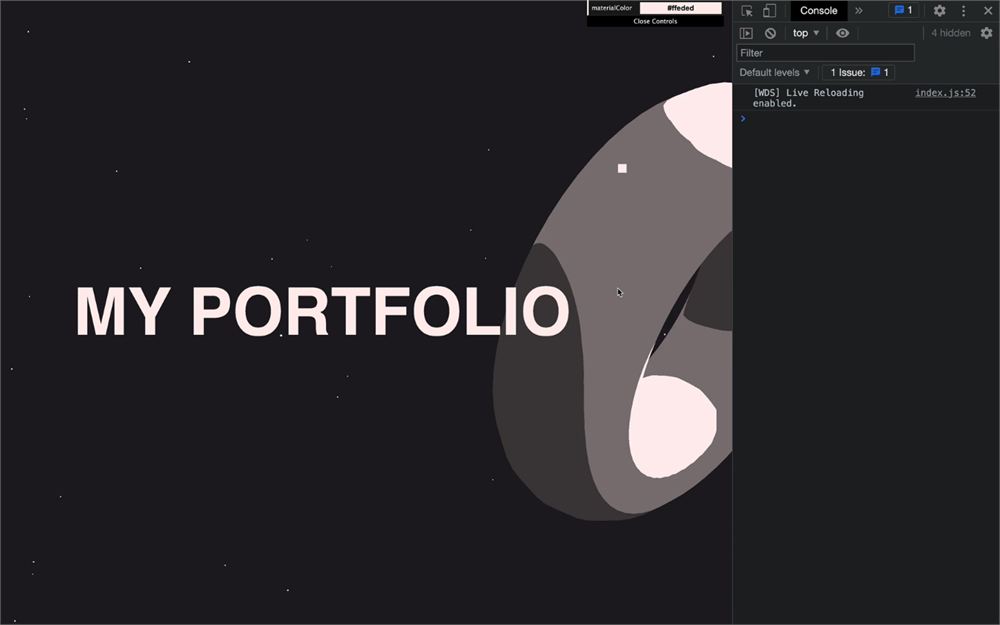
这之所以有效,是因为每个区块正好是一个视口的高度。
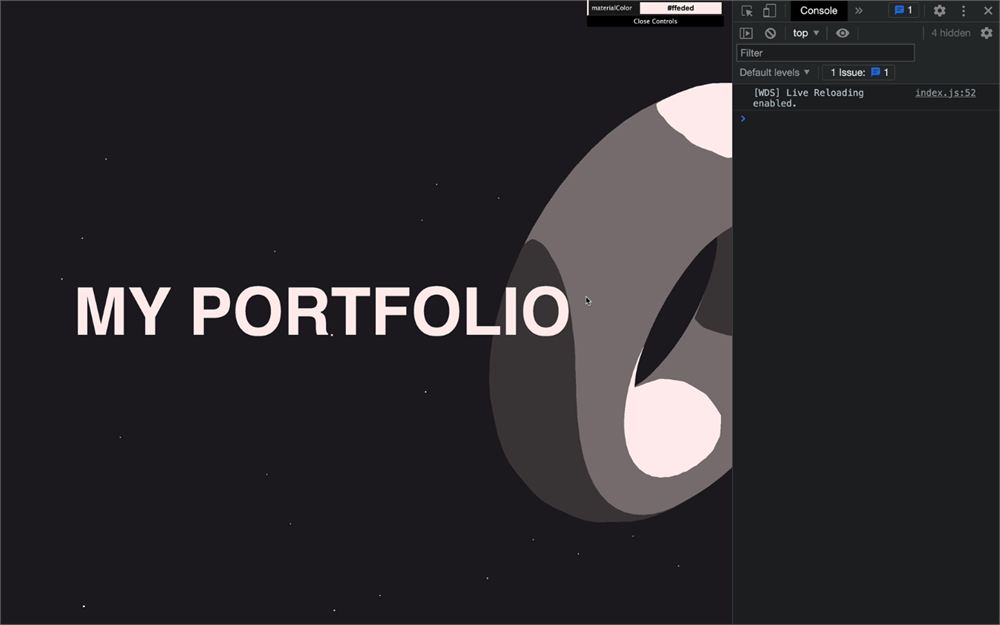
要得到确切的区块而不是这个浮点值,我们可以用 Math.round():
window.addEventListener('scroll', () =>
{
    scrollY = window.scrollY

    const newSection = Math.round(scrollY / sizes.height)

    console.log(newSection)
})
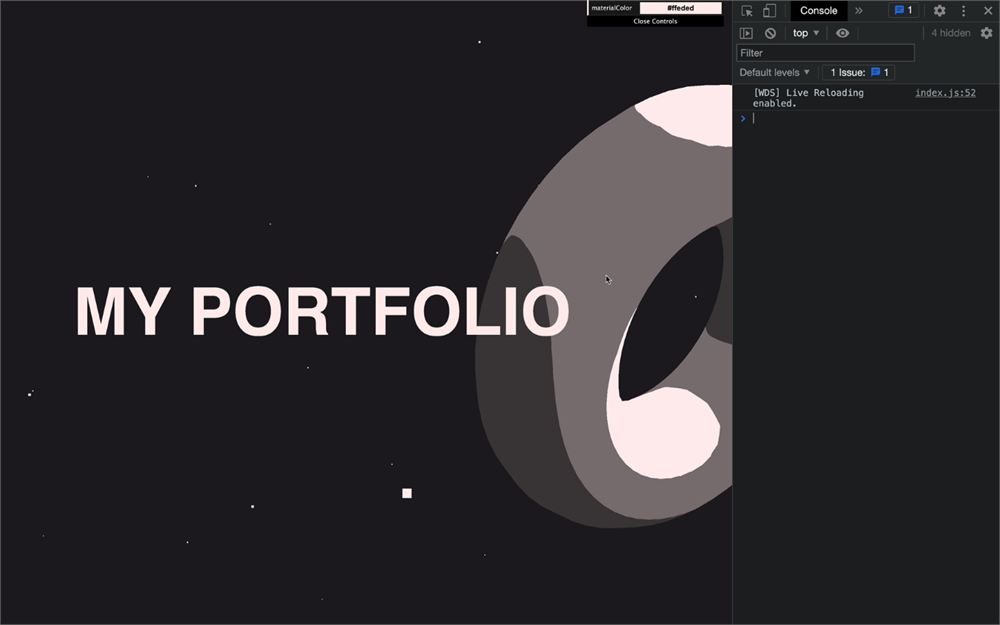
我们现在可以测试 newSection 是否和 currentSection 不同。如果不同,说明我们换了区块,就可以更新 currentSection 来做我们的动画:
window.addEventListener('scroll', () =>
{
    scrollY = window.scrollY
    const newSection = Math.round(scrollY / sizes.height)

    if(newSection != currentSection)
    {
        currentSection = newSection

        console.log('changed', currentSection)
    }
})
让 mesh 动起来
我们现在可以让 mesh 动起来了,为此我们要使用 GSAP。
在终端运行 npm install gsap@3.12 把 GSAP 添加到依赖里。我们用 GSAP 一个非常具体的版本,确保代码一致。如果你想用最新版本,运行 npm install gsap,但你可能需要用不同的语法。
如果你收到漏洞警告,别在意。它不危险。
依赖添加好之后,在代码开头导入 GSAP:
import gsap from 'gsap'然后,在我们之前做的 if 语句里,我们可以用 gsap.to() 做动画:
window.addEventListener('scroll', () =>
{
    // ...

    if(newSection != currentSection)
    {
        // ...

        gsap.to(
            sectionMeshes[currentSection].rotation,
            {
                duration: 1.5,
                ease: 'power2.inOut',
                x: '+=6',
                y: '+=3'
            }
        )
    }
})
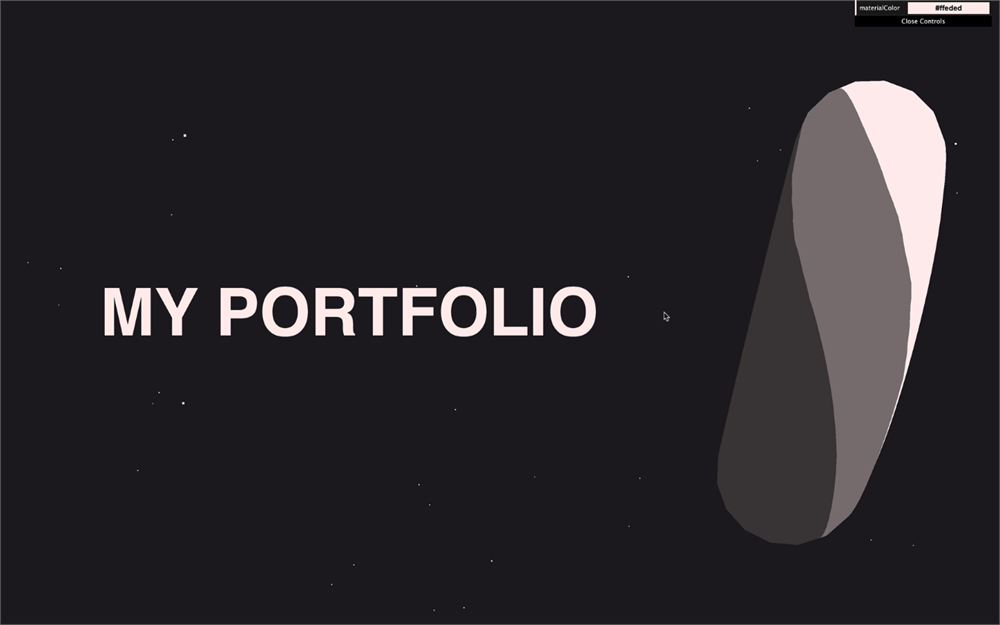
虽然这段代码是有效的,但它不幸不会生效。原因是在每一帧,我们都已经用 elapsedTime 更新了每个 mesh 的 rotation.x 和 rotation.y。
要修复这个,在 tick 函数里,与其基于 elapsedTime 设置一个非常具体的旋转,我们不如把 deltaTime 加到当前旋转上:
const tick = () =>
{
    // ...

    for(const mesh of sectionMeshes)
    {
        mesh.rotation.x += deltaTime * 0.1
        mesh.rotation.y += deltaTime * 0.12
    }

    // ...
}
要给动画加更多随机性,尤其是圆锥,我们也可以动画化 z 轴:
gsap.to(
            sectionMeshes[currentSection].rotation,
            {
                duration: 1.5,
                ease: 'power2.inOut',
                x: '+=6',
                y: '+=3',
                z: '+=1.5'
            }
        )
继续深入
我们保持得非常简单,但你可以走得远得多。
- 给 HTML 添加更多内容
- 动画化其他属性,比如材质
- 动画化 HTML 文本
- 改进粒子
- 给调试 UI 添加更多调整项
- 测试其他颜色
- 等等